The employee app
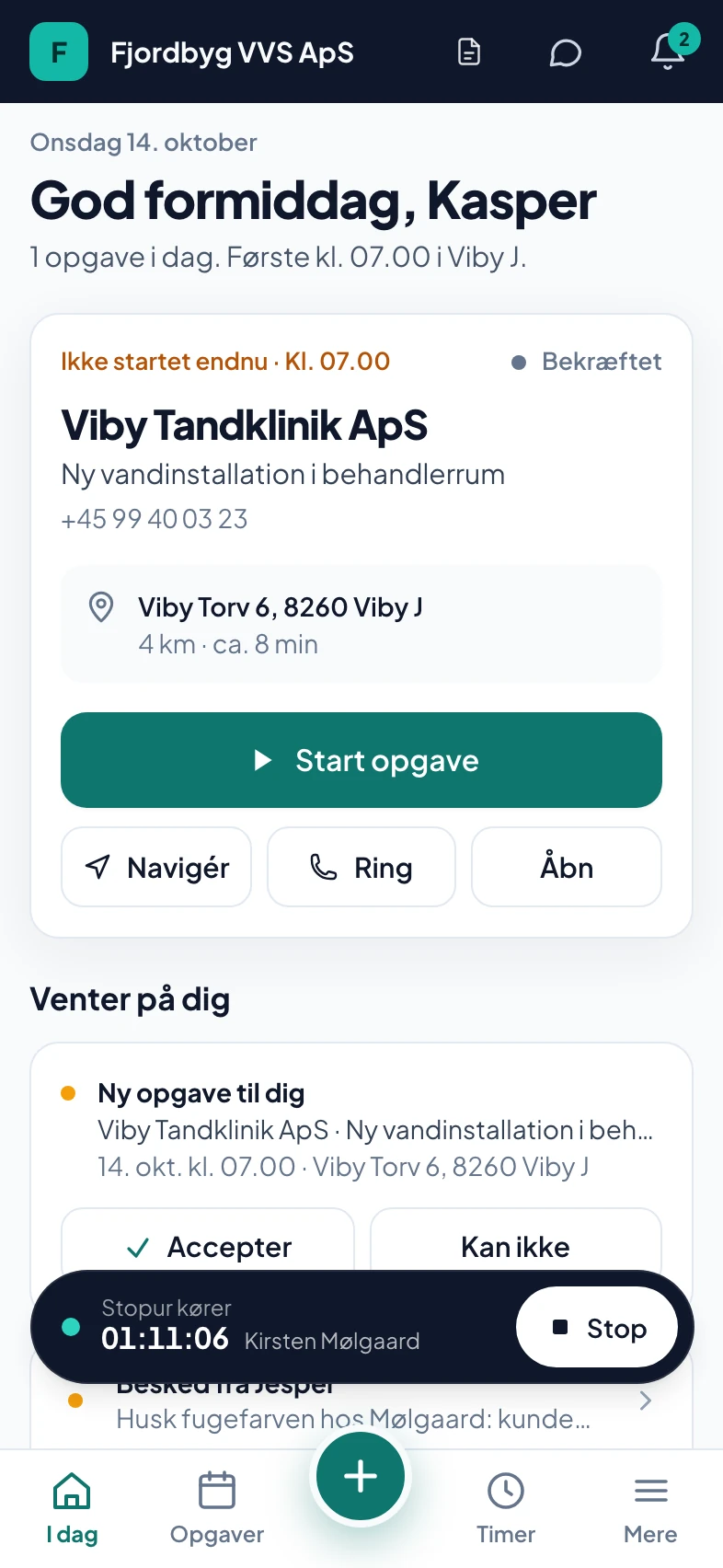
Your employee opens the app in the morning and sees the day’s next job at the top, with the address and the button to tap. Hours, photos and materials land on the job, even when there is no signal.
Everything included. Installed from the browser, no App Store.
Built for a phone on a building site
Big buttons, few screens and no questions to the office about what needs doing.
The day starts with the next job
The home screen shows the next job with the action that fits: Start drive, Start job or Done. Below it is what is waiting for the employee, the rest of the day as one list and the week’s hours.
- Navigate and call
- Directions and the customer’s number one tap away
- New job
- The employee can accept a new job straight away or decline with a reason
- Drive time
- Distance and drive time to the next job
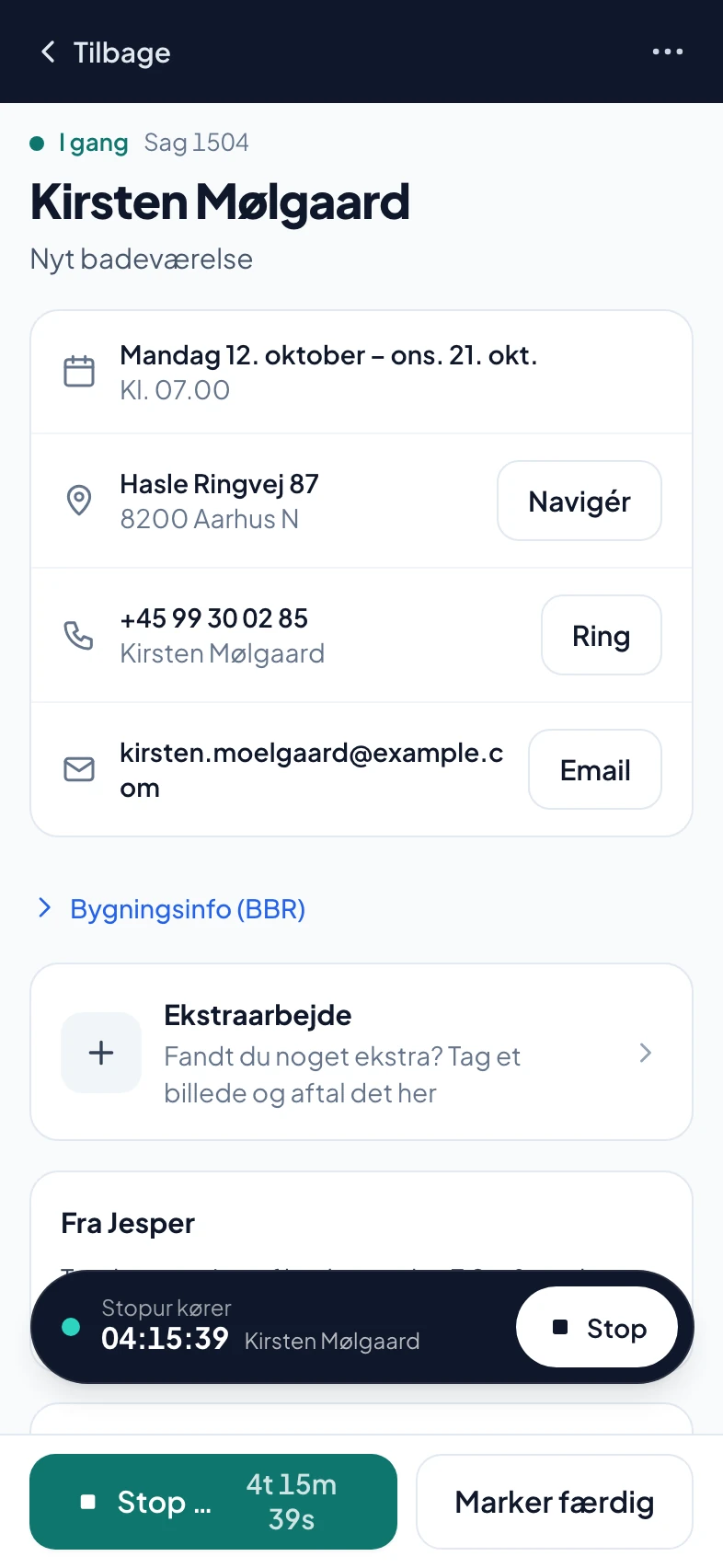
Everything about the job on one screen
Time, address and phone are at the top. Photos are grouped as before, during and after. Materials are typed in or spoken in. The actions stay fixed at the bottom, and what is rarely used sits under three dots.
- Photos
- Made smaller on the phone before upload, so it is quick on a poor connection
- Checklist
- If you have made one for the job type, it must be ticked off before Done
- Receipt
- A photo of the receipt is added to the job
Works in the basement without signal
Hours, status, materials, notes and checklist are saved on the phone when there is no connection and sent by themselves when there is signal again. They are sent in the order they were made, so a job is never finished before it has started. Photos wait on the phone until they can be sent.
- Saved
- Up to 7 days on the phone
- Visible
- The employee can see what is waiting to be sent
- Start drive
- Needs a connection, because the customer gets an SMS
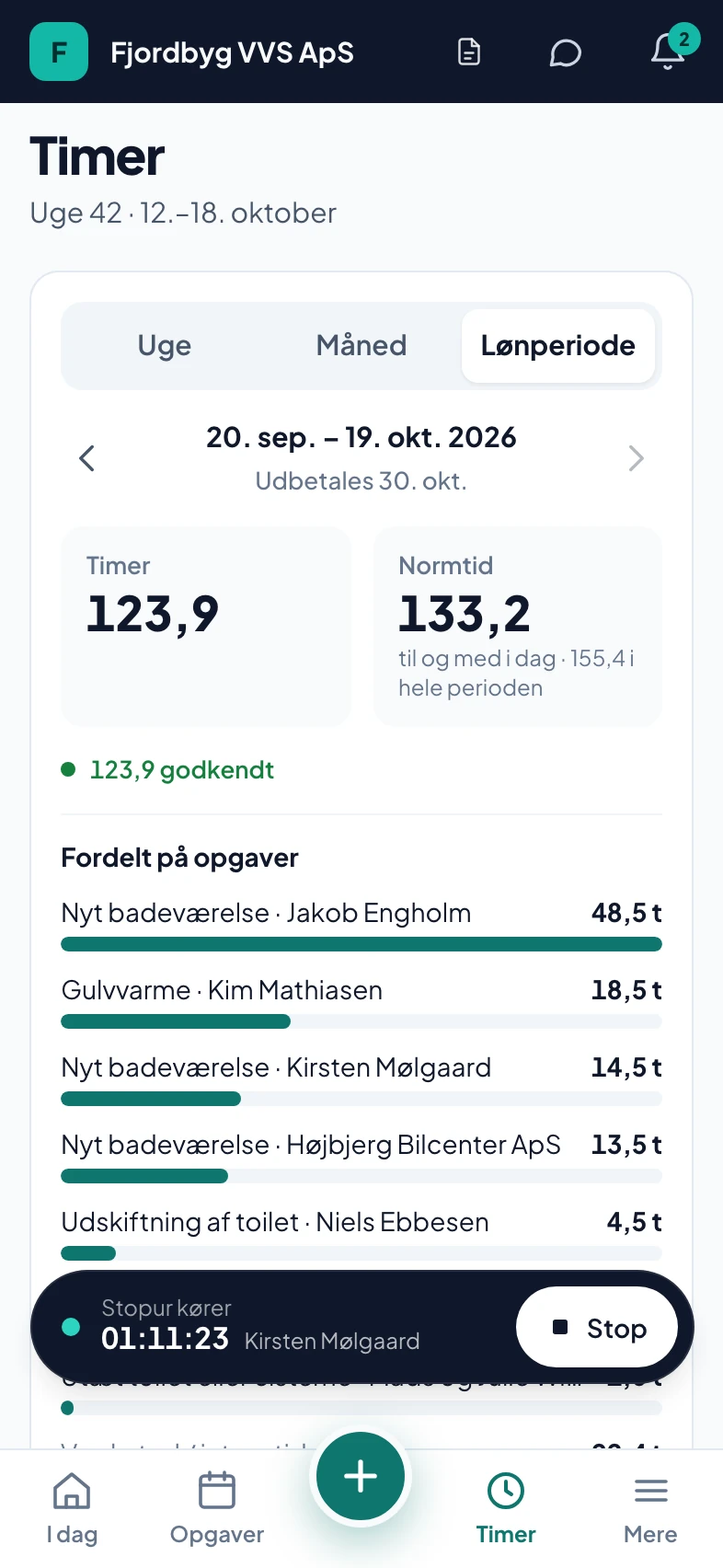
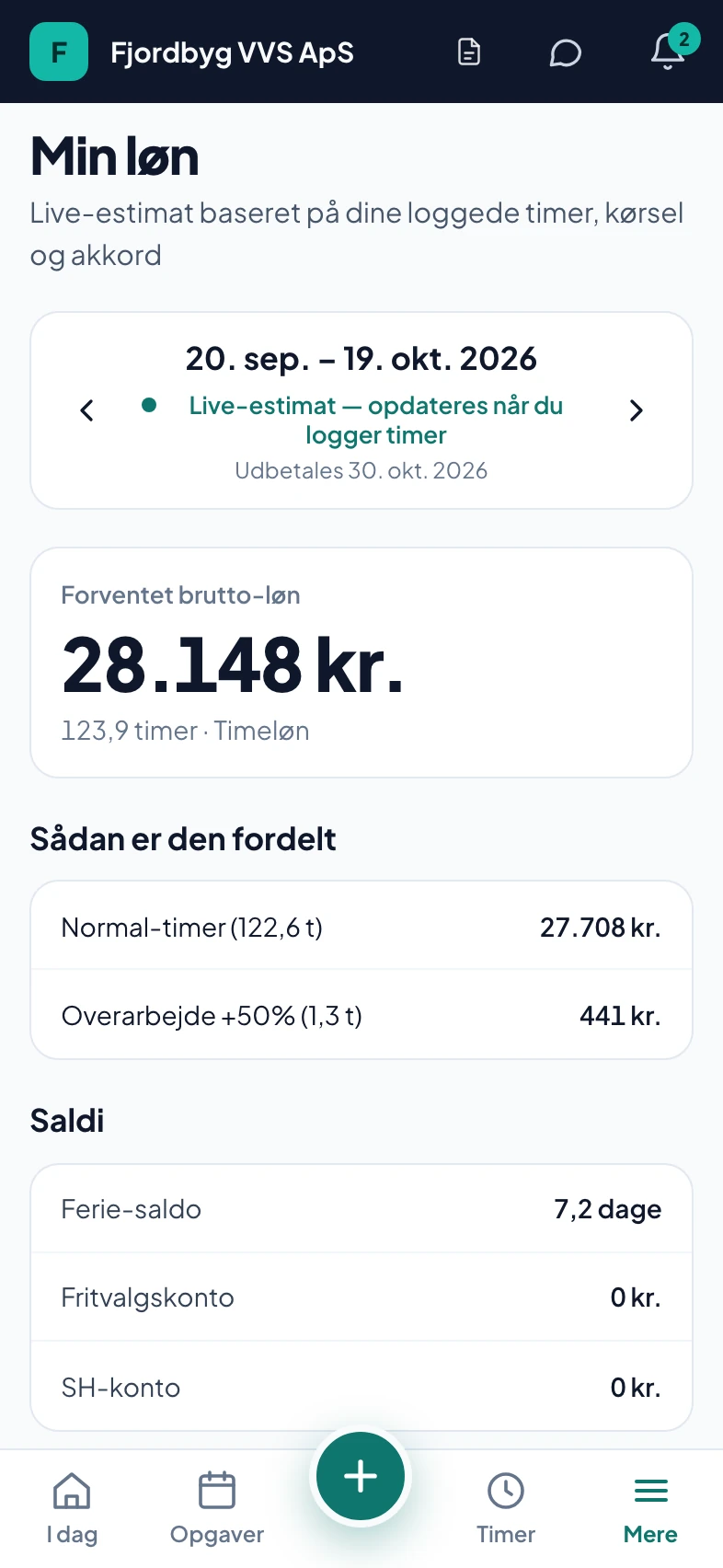
Hours and pay in your pocket
The clock is started and paused from the app and keeps running when the phone is locked. The hours screen shows today’s clock and the week’s hours. Under My pay, the employee sees his expected pay for the month and his holiday balance, and can download his payslip.
- Clock
- Start, pause and stop
- My pay
- Expected pay, holiday balance and payslip
- Absence
- Holiday requests and sick notes from the app
Each employee sees what he needs
You decide per employee whether he may see cost prices and margins, create jobs and site visits, upload photos or handle leads, and whether he sees his own jobs, his crew’s or all of them. It applies across the whole system, not just in the menu. Apprentices never see cost prices or margins.
- Jobs
- His own, the crew’s or all
- Site visit
- On an existing customer or a new one, if he is allowed
- Finances
- Hidden until you give access
In Danish and English
Each employee chooses their own language. The whole app is available in English, so a colleague from abroad can use it from day one. There is also dark mode and a guided tour the first time.
- Language
- Danish or English per employee
- Dark mode
- For early mornings
How it works day to day
A day for an employee with three jobs.
- At sevenThe app shows the first job with address and drive time. He taps Start drive, and the customer gets an SMS with the expected arrival time.
- At the customer’sStart job starts the clock. Before photos are taken and added to the job.
- In the basementNo signal. Materials and notes are saved on the phone and sent when he is back up.
- When he is finishedHe ticks off the checklist, takes after photos and taps Done. The next job moves up.
- In the afternoonA new job turns up under Waiting for you. He accepts it or declines.
- In the eveningThe hours are on the jobs, ready for you to approve.
Also in the app
The things employees would otherwise ring the office about.
- MessagesTeam chat and a direct line to the owner, with an unread count.
- NotificationsPush about new jobs, shifts, absence and missing hours.
- ColleaguesWho is working, and how to reach them.
- Shift swapsSwap a shift with a colleague, which you approve.
- The routeThe whole day’s route in Google Maps with one tap.
- ContractThe employee can see his employment contract.
What you can count on
What the app does, and what it does not do.
- Only on the way to the customerWhen the employee taps Start drive, the customer and you can follow the van on the map until the employee arrives. It then stops by itself, after 3 hours at the latest. For the rest of the day, no position is shared.
- Nothing is lost without a connectionWhat is done without signal is sent when there is a connection, in the right order.
- No App StoreThe app is installed from the browser on iPhone and Android and updates itself.
- You control accessAn employee without access cannot fetch the finances around the app either.
Questions about the employee app
If your question isn’t here, call 93 94 12 06.
Do employees have to get the app from the App Store?
No. They open a link on their phone and add the app to the home screen. It works on iPhone and Android and updates itself.
Does the app work without signal?
Yes. Hours, status, materials, notes and checklist are saved on the phone and sent when there is a connection again, in the order they were made. Photos also wait until they can be sent. Start drive needs a connection, because the customer gets an SMS.
Can the employee see prices and margins?
Only if you allow him to. You decide per employee, and apprentices never see it.
Can you see where your employees are all day?
No. Only from when the employee taps Start drive until they arrive at the customer can the customer and you see the van on the map. Sharing then stops by itself, after 3 hours at the latest. For the rest of the day, no position is shared.
Is the app available in English?
Yes. Each employee chooses Danish or English, and the whole app is translated.
Can the employee create a site visit himself?
Yes, if he is allowed. He finds an existing customer by name, phone or address, or creates a new one.
Does the employee app cost extra?
No. The employee app is included in the price. You pay per person with their own login, and everything is included.